
Choose your location.
Make it your shore.
Set your first coastal location, switch to another spot, and keep your favorites close at hand.
Screenshots show the iOS app. Labels and layout may differ on other platforms or app versions. The locations and forecast values shown are examples.
Set your first location
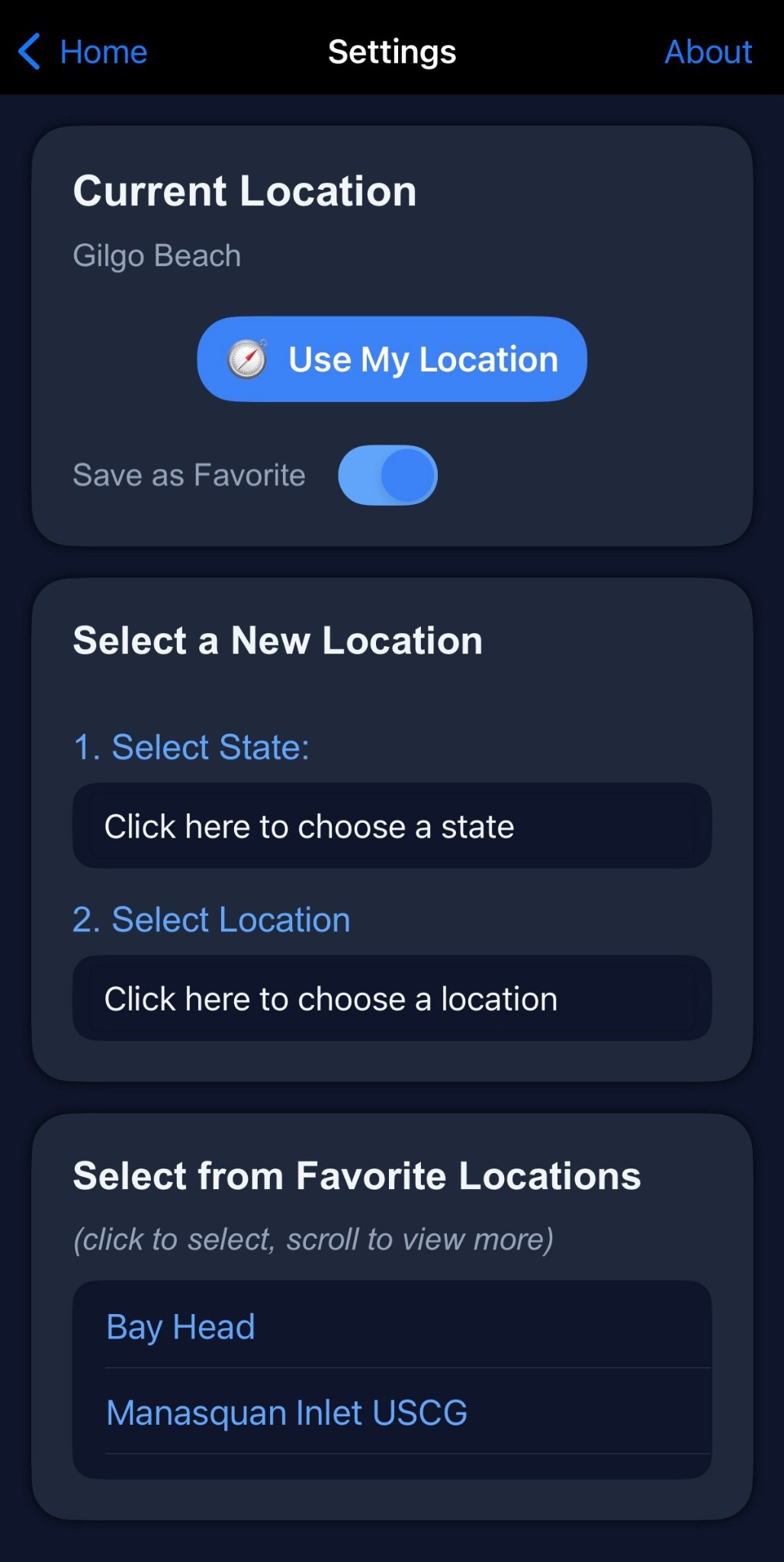
- Open Settings. If you are on the Home screen, tap Settings at the top.
- Choose your state. In Settings, find Select a New Location. Under 1. Select State, tap Click here to choose a state and choose your state.
- Choose your coastal location. Under 2. Select Location, tap Click here to choose a location and choose the location you want.
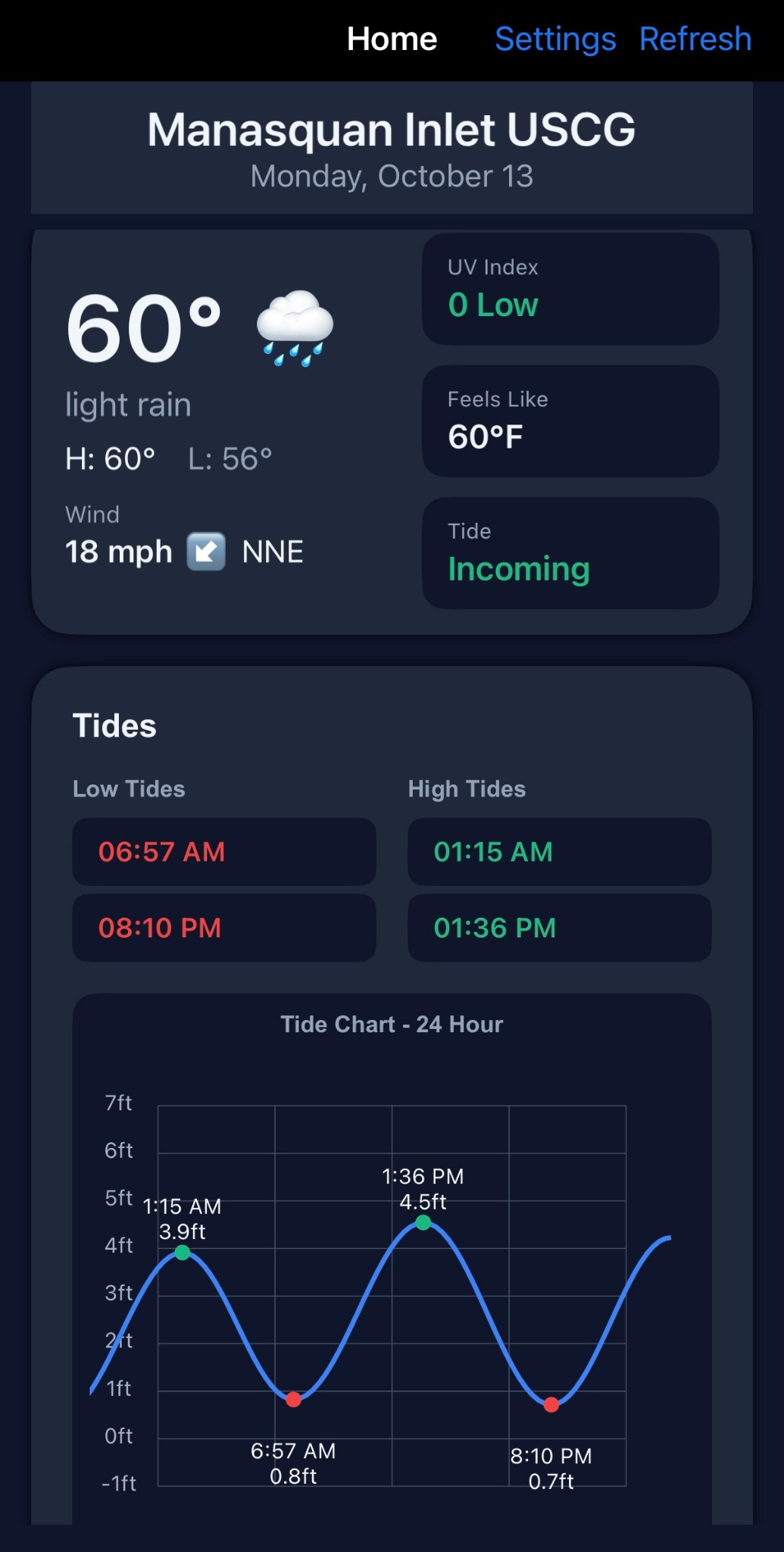
- Check your selection. Look at Current Location in Settings. Tap Home to view the forecast and check the location name at the top.
Tap Use My Location in Settings to find the nearest tide station. Allow location access if prompted, then check the selected station. You can use the manual state and location selectors without sharing your device location.
Change your location
- From Home, tap Settings at the top of the screen.
- Under Select a New Location, choose the state and then the new coastal location.
- Check Current Location, then tap Home.
- Confirm the location name at the top of the Home screen before reading the forecast.
To switch to a nearby station using your position instead, tap Use My Location in Settings.
Save and switch favorites
- Choose the location you want to save and check its name under Current Location.
- Turn on Save as Favorite.
- To return to a saved spot, find Select from Favorite Locations in Settings and tap its name. Scroll the list to see more favorites.
- Tap Home and confirm the selected location above the forecast.
In the example Settings screenshot, Bay Head and Manasquan Inlet USCG appear in the favorites list.
Need a hand?
If your screen looks different or you cannot find your location, visit Support. Include your device, app version, and the state or station you are looking for.